If you send ten or more declarations a day, typing each one into a form is the slow part. The details are usually in your own system or a spreadsheet already. With bulk upload you send them to ENS Ready in one file, for GB ENS or EU ICS2.
Step 1: Download the template
On your dashboard, choose Bulk upload, then GB ENS or EU ICS2. Download the template as Excel or CSV. The Excel template has drop-down lists for ports, countries and package types, and a sheet that explains every column.
Step 2: Fill it in
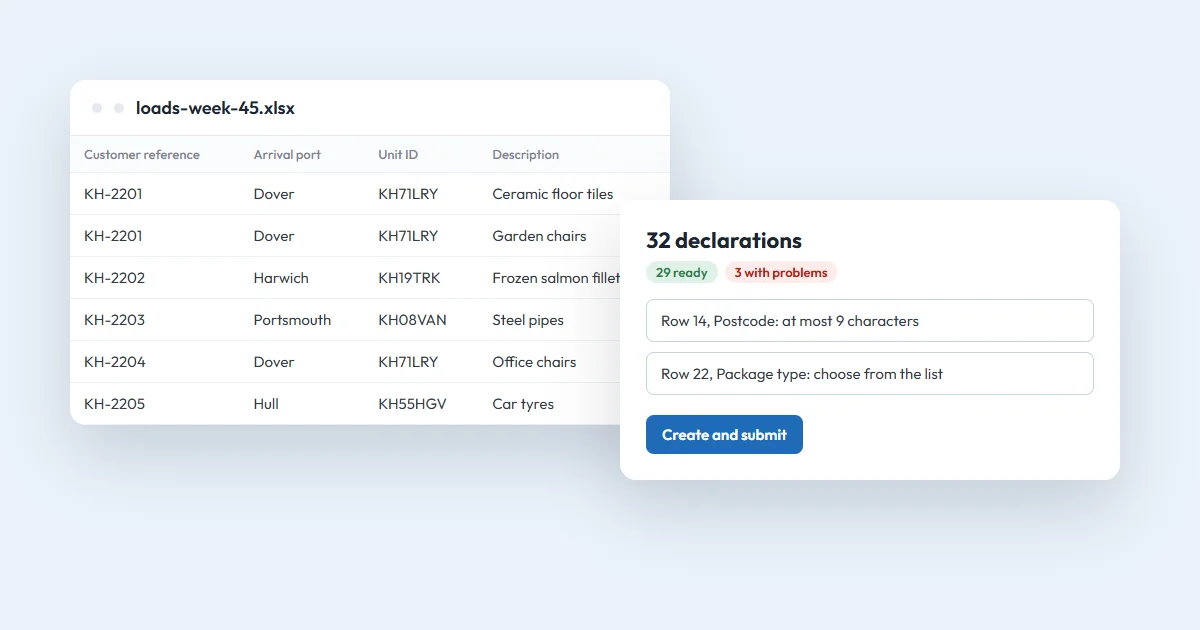
- One row per goods line. Rows with the same customer reference make one declaration.
- Fill in the declaration's details (ports, parties, dates) on its first row. Later rows can leave them empty.
- Dates go in as DD/MM/YYYY and times as HH:MM. An Excel date cell works too.
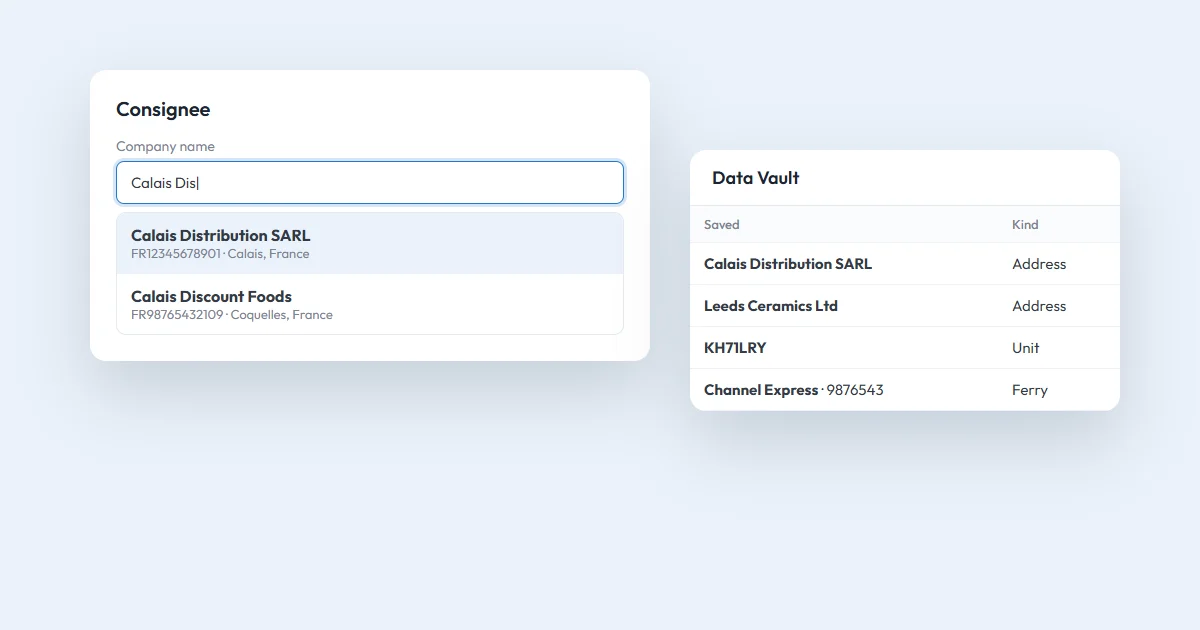
- For a consignor, consignee or carrier you've saved in your Data Vault, type the saved name instead of the whole address.
A file can hold up to 100 declarations.
Using your own spreadsheet
If your transport system already exports the loads, upload that file. ENS Ready asks you to match your columns to ours once ("your column" for each of ours) and remembers the match for your company. Next time a file with the same headings is matched for you.
You can also save upload defaults, such as your ENS requestor EORI or the usual ports. They're used only where a row leaves that column empty.
Step 3: Check the preview
After the upload, every row is checked with the same rules as the declaration form. The preview shows a total, for example "32 declarations: 29 ready, 3 with problems", and each problem with its row, column and reason, such as "Row 14, Postcode: at most 9 characters".
Some notes are warnings that don't stop a declaration, for example an EORI that isn't found in the official register. Check those before you send.
Fix the file and upload it again, or carry on with the declarations that are ready.
Step 4: Create or submit
Choose Create as drafts to look at them in the form first, or Create and submit to send them straight away. You confirm once, then they're sent one at a time with a progress bar and a result for each.
If you close the page halfway, the rest stay as drafts. Submit the rest in the upload history carries on where you stopped.
After sending
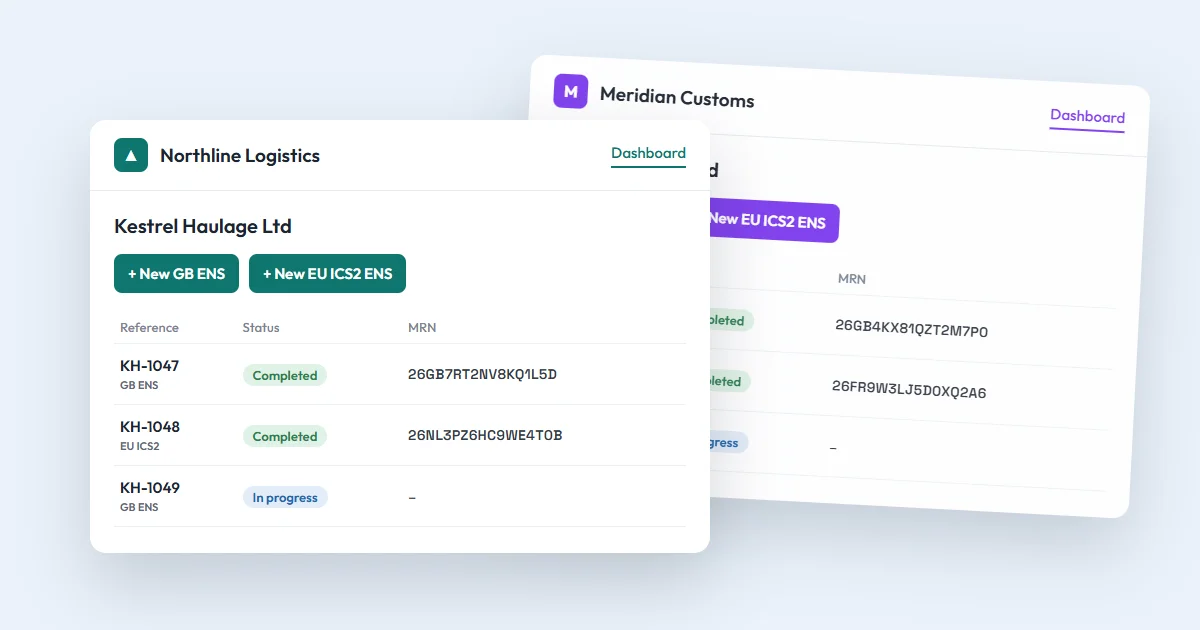
The MRNs arrive on your dashboard and by email, as for any declaration. The upload history shows each file, who uploaded it, when, and how many declarations it created and submitted.
Each accepted declaration uses one credit, the same as one typed into the form. To find and export them later, use the dashboard's search and export.
Bulk upload is open to everyone in your company, whatever their role.
Questions
How many declarations can I upload at once?
Up to 100 declarations per file. Each goods line is one row, and rows with the same customer reference make one declaration.
Can I use my own spreadsheet instead of the template?
Yes. Upload your own Excel or CSV export and match its columns to ours once. ENS Ready remembers the match for your company the next time the headings are the same.
What happens if some rows have mistakes?
The preview lists each problem with its row, column and reason. You can fix the file and upload it again, or carry on with the declarations that are ready.
Does bulk upload cost more?
No. Each accepted declaration uses one credit, the same as a declaration typed into the form.